Table of Contents
That sinking feeling when your once-snappy computer takes minutes to boot, applications crawl to open, and even switching between browser tabs stutters — we have all been there. The good news is that most sluggish computers are not broken. They are just bogged down by accumulated software, outdated hardware, and years of digital clutter. With the right approach — moving from free software tweaks to affordable hardware upgrades — you can often restore your machine to a responsive, usable state without spending much, or anything, at all.
Step 1: Free Software Fixes (Start Here)
Manage Startup Programs
The single biggest cause of slow boot times and sluggish performance is too many programs launching automatically when your computer starts. Every application that loads at startup consumes RAM and competes for processor and disk resources, even if you never open it during your session. On Windows, press Ctrl+Shift+Esc to open Task Manager, navigate to the Startup tab, and disable everything you do not need running at boot — messaging apps, updaters, cloud sync tools, and helper utilities are the usual suspects. On macOS, go to System Settings > General > Login Items and remove unnecessary entries. You will likely find 5-15 programs that have quietly added themselves to your startup list over the years. Disabling them is the fastest, easiest performance win available, and it costs nothing.
Uninstall Bloatware and Unused Programs
Over the life of a computer, most users install far more software than they actually use. Each installed program potentially includes background services, auto-updaters, and scheduled tasks that consume system resources. Go through your installed programs list (Windows: Settings > Apps > Installed Apps; macOS: Finder > Applications) and uninstall everything you have not used in the past six months. Be especially vigilant about manufacturer-installed bloatware on Windows laptops — trial antivirus suites, proprietary media players, and "system optimizer" tools from Dell, HP, Lenovo, and others are notorious resource hogs that provide little to no benefit. For a deeper clean on Windows, use the built-in Disk Cleanup tool (search for it in the Start menu) and select "Clean up system files" to remove Windows Update leftovers and temporary files, which can reclaim gigabytes of disk space.
Browser Cleanup
For many users, the web browser is the most-used application, and it is also the biggest performance drain. Browser extensions accumulate silently and each one adds overhead. Review your installed extensions and remove any you do not actively use. In Chrome, type chrome://extensions in the address bar; in Edge, edge://extensions; in Firefox, about:addons. A browser with 20 extensions installed can consume 2-3GB of RAM before you open a single tab. Consider switching to a lightweight browser like Firefox or Brave if your current browser feels heavy. Also, enable the "Memory Saver" feature in Chrome (Settings > Performance) to automatically free memory from inactive tabs.
Step 2: Affordable Hardware Upgrades
Upgrade to an SSD (Solid-State Drive)
If your computer still uses a traditional spinning hard drive (HDD), replacing it with an SSD is the single most effective upgrade you can make. An HDD reads data at roughly 80-160 MB/s with seek times measured in milliseconds. A modern SATA SSD reads at 500-550 MB/s with near-zero seek time. The result is not a marginal improvement — it is a night-and-day difference. Boot times drop from 2-3 minutes to 15-30 seconds. Applications open almost instantly. Everything feels responsive in a way that makes the computer feel brand new.
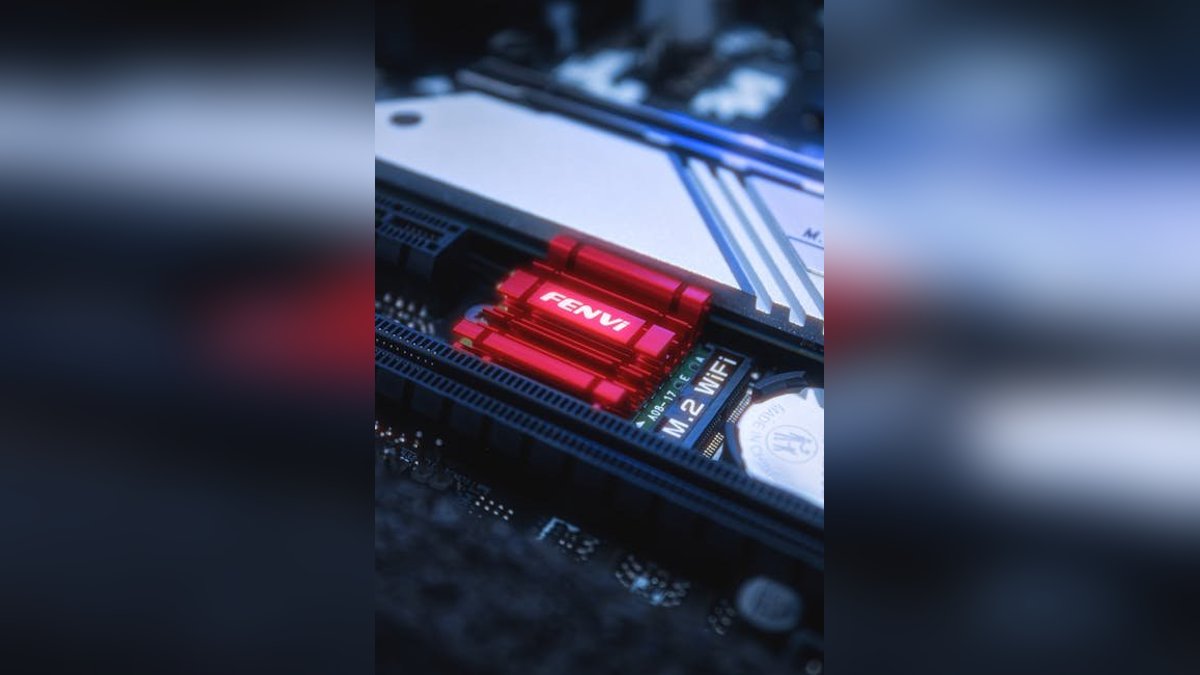
A 512GB SATA SSD costs around $25-35 as of 2026, and a 1TB model is $45-60. NVMe SSDs (for computers with M.2 slots) are even faster (3,500 MB/s+) and cost roughly the same. The upgrade process involves cloning your existing drive to the new SSD using free software like Macrium Reflect or Clonezilla, then swapping the physical drives. For desktop computers, this is a straightforward 15-minute job. For laptops, it requires a bit more care but is well within the reach of anyone comfortable following a YouTube tutorial.
Add More RAM
Insufficient RAM is the second most common hardware bottleneck in aging computers. 8GB is the practical minimum for a usable Windows or macOS experience in 2026. If your machine has 4GB, upgrading to 8GB (or better yet, 16GB) will dramatically reduce the stuttering and freezing that occurs when you have multiple applications or browser tabs open. RAM prices are at historic lows — a 16GB DDR4 SO-DIMM kit for a laptop costs $25-35. Desktop RAM is similarly affordable.
Before buying, check three things: how much RAM your computer currently has (Task Manager > Performance > Memory on Windows; About This Mac on macOS), whether the RAM is user-upgradeable (many modern ultrabooks and all Apple Silicon Macs have soldered RAM that cannot be changed), and what type of RAM your system requires (DDR3, DDR4, or DDR5 — use Crucial's free System Scanner tool to identify compatible modules). If you frequently see RAM usage above 80% in Task Manager during normal use, adding RAM will make a meaningful difference. If usage rarely exceeds 60%, more RAM will not help — your bottleneck lies elsewhere.
Step 3: System Maintenance and When to Upgrade
Scan for Malware and PUPs
Malware and Potentially Unwanted Programs (PUPs) are a surprisingly common cause of mysterious slowdowns. Cryptominers, adware, and browser hijackers consume processor cycles and network bandwidth in the background. Run a full scan with Windows Defender (built into Windows) or Malwarebytes Free for a second opinion. On macOS, run Malwarebytes Free as well — Macs are not immune to adware and PUPs. If you discover infections, remove them and monitor performance afterward. A clean system that was previously infected often feels dramatically faster once the parasitic processes are eliminated.
Consider a System Reset or OS Reinstall
If software fixes and hardware upgrades have not restored acceptable performance, a clean operating system reinstall is the nuclear option that often works. On Windows, go to Settings > System > Recovery and choose "Reset this PC" with the option to keep personal files. On macOS, use Erase All Content and Settings (Apple Silicon) or boot into Recovery Mode and reinstall macOS (Intel Macs). A fresh OS install wipes away years of accumulated registry bloat, orphaned drivers, fragmented configuration files, and mysterious background processes that no cleaner tool can fully resolve. This is a time investment — you will need to reinstall your applications and restore your files — but the performance payoff is substantial.
When to Accept Defeat and Buy New
Some computers reach a point where upgrades are no longer cost-effective or even possible. Here is a practical decision framework. If your computer is more than 8 years old, has a processor that was low-end even when new (e.g., Intel Celeron or Pentium, AMD A-series), has soldered RAM that cannot be upgraded, and lacks an SSD slot, the cumulative cost of upgrades (if they are even possible) will approach the price of a modern budget machine that dramatically outperforms it. A $400-500 Windows laptop or Chromebook in 2026 will run circles around an 8-year-old machine. If your computer still feels slow after an SSD upgrade, RAM increase, and clean OS install, the processor and platform are the bottleneck, and there is no cost-effective fix for that.
However, do not underestimate how much life remains in a well-maintained older machine. A 5-7 year old laptop with a Core i5 or i7 processor, 16GB RAM, and an SSD can still handle everyday tasks comfortably. The environmental and financial benefits of extending your current computer's life by even 2-3 years are significant. Exhaust the free and affordable options first — you may be surprised at the results.
Pro Tip: Before spending money on upgrades, back up your important files. While SSD installations and RAM upgrades are generally safe procedures, any time you open your computer's case, there is a small risk of accidental damage. A current backup ensures that even the worst-case scenario is merely inconvenient, not catastrophic.
Putting These Tips Into Practice
The recommendations here are most effective when implemented consistently rather than as a one-time effort. Create a simple schedule with reminders to transform good intentions into lasting habits. Start with changes offering the most impact for the least effort.
Troubleshooting Common Challenges
Even with careful planning, you may encounter challenges when implementing the advice in this guide. Common issues include compatibility problems between different devices or software versions, performance degradation after configuration changes, and difficulty maintaining new habits over time. For technical issues, the manufacturer support website or user forums are often the best resources for specific solutions. For habit-related challenges, start by identifying the specific barrier that is preventing you from being consistent and address it directly. If a particular practice feels too time-consuming, look for tools or automation that can reduce the effort required.
Questions to Ask Before Making a Decision
Before finalizing your approach based on this guide, consider a few key questions. What is your primary goal? Understanding your priority helps you focus on the advice that matters most. What is your budget? Some recommendations may require an initial investment that pays for itself over time. What is your technical comfort level? Be honest about whether you can implement the advice yourself or whether professional help is a better option. Answering these questions before taking action ensures you get the maximum benefit from the information presented here and avoid common mistakes that come from rushing into decisions without proper planning.
Additionally, consider that technology recommendations evolve rapidly, and what is current best practice today may be outdated within a year or two. Bookmark trusted technology review sites and subscribe to newsletters that cover your areas of interest so you stay informed about new developments. Joining online communities focused on specific topics, such as subreddits, Discord servers, or specialized forums, provides access to real-world experiences and advice from enthusiasts and professionals who work with these technologies daily. The collective knowledge of a community often surpasses what any single guide can provide, and participating in these communities allows you to both learn from others and contribute your own experiences as you gain expertise over time.