Table of Contents
You type for six to ten hours a day, and if you are using the keyboard that came free with your desktop or worse, the mushy membrane keyboard built into your laptop, you are missing out on the single biggest upgrade to your daily computing experience. Mechanical keyboards use individual switches under every key, each with its own spring and stem, to deliver tactile feedback and a satisfying sound that makes typing feel precise instead of vague. The hobby can get expensive and obsessive fast, with custom keycap group buys and $400 aluminum cases, but a fantastic mechanical keyboard now costs between $50 and $100. This guide strips away the jargon and gives you everything you need to pick your first mechanical keyboard with confidence.
Switch Types: The One Decision That Defines Your Keyboard
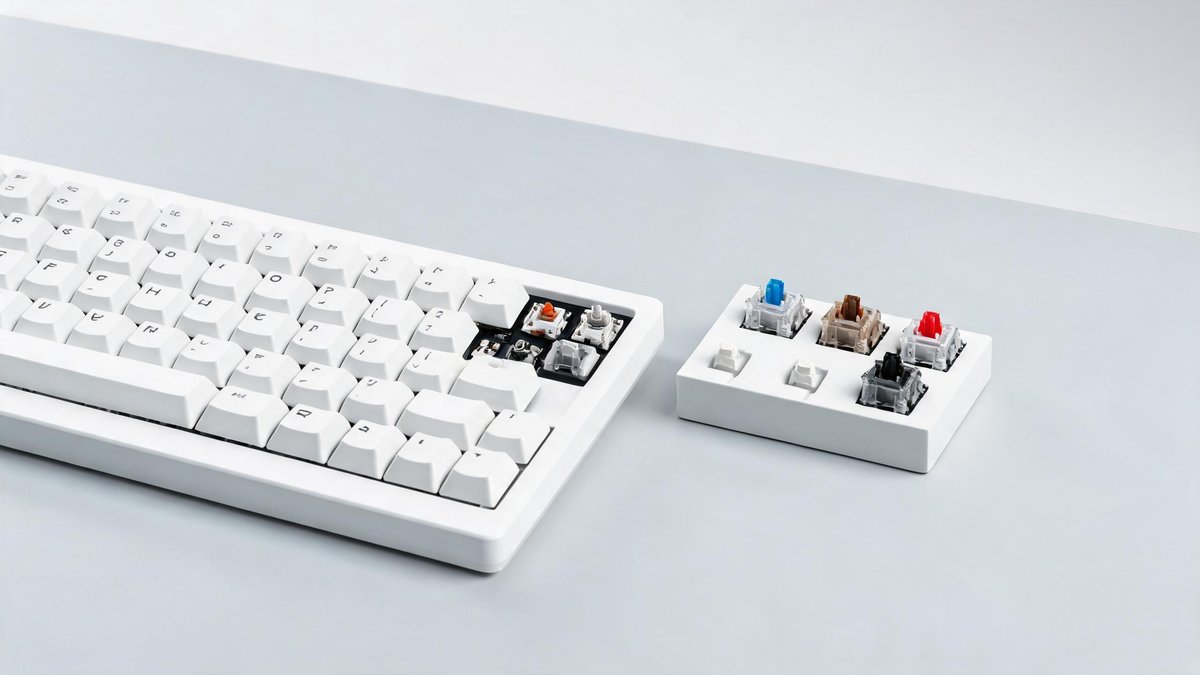
Every mechanical keyboard feels different because of the switches sitting under the keycaps. Switches come in three families: linear, tactile, and clicky. Linear switches travel straight down with no bump and no click. They are smooth, quiet, and preferred by gamers who need rapid key presses without resistance. Popular linear switches include Cherry MX Red, Gateron Yellow, and Kailh Box Red. Actuation force typically sits at 45 grams, meaning your finger barely has to press.
Tactile switches add a noticeable bump partway through the press to signal that the keystroke registered. You feel the bump without hearing a loud click. Writers and programmers tend to favor tactile switches because the feedback reduces typing errors. Cherry MX Brown, Gateron Brown, and the premium Holy Panda X are the most common options. Actuation force ranges from 45 to 60 grams. Clicky switches combine the tactile bump with an audible click, and while they are satisfying in isolation, they will drive coworkers and family members up the wall. Cherry MX Blue remains the classic clicky switch, but its 60-gram actuation force can fatigue your fingers over long sessions. The practical takeaway: buy linear for gaming, tactile for typing, and avoid clicky unless you work in a soundproof room.
Keyboard Sizes: From Full-Size to Tiny
Keyboard size determines how many keys you get and how much desk space you save. A full-size keyboard includes a number pad, function row, navigation cluster, and arrow keys. It measures roughly 17 inches wide and works best if you enter numbers frequently. A tenkeyless (TKL) keyboard drops the number pad but keeps function keys and arrows, shrinking to about 14 inches. 75% and 65% layouts go further, trimming gaps between key clusters and removing some navigation keys; the arrow keys survive but the function row might require holding an Fn key. A 60% board eliminates everything but the main typing area and uses key combinations for arrows and function keys.
Tech Fact: A strong, unique password is your first line of defense. The FBI reports that 80% of hacking-related breaches involve compromised passwords. A password manager generates and stores secure passwords for every account.
The core claim: a 65% or 75% board is the sweet spot for most beginners. You keep the arrow keys and a few navigation shortcuts, but the narrower footprint lets you center the keyboard in front of you, reducing shoulder strain from reaching for a mouse that sits too far to the right. The practical takeaway: if you type numbers all day, get a full-size or a separate wireless number pad. If you do not, a 75% board like the Keychron V1 or Epomaker TH80 gives you all the keys you need without wasting desk space.
Hot-Swappable vs. Soldered: Why You Want Hot-Swap
In a soldered keyboard, the switches are permanently attached to the circuit board. If you hate the feel or a switch breaks, you need a soldering iron to fix it. A hot-swappable keyboard has sockets that let you pull switches out with a $5 tool and push new ones in with your fingers. No soldering, no risk of destroying the board. The feature was rare below $100 three years ago. In 2026, you can find hot-swap on keyboards starting at $35.
The core claim: always buy hot-swappable for your first mechanical keyboard. It lets you experiment with different switches without buying a whole new board. A set of 70 replacement switches costs $20 to $35, and swapping them takes 15 minutes. The practical takeaway: hot-swap turns your keyboard from a static product into a platform you can tweak. You might buy linear switches now and swap to tactile switches in six months when you realize you prefer the bump. That flexibility is worth the small premium.
Best Budget Mechanical Keyboards Under $100
The Keychron V1 ($74) is the gold standard for entry-level mechanical keyboards. It uses a 75% layout with hot-swappable switches, doubleshot PBT keycaps that will not develop a shiny oil coating over time, and a knob for volume control. It comes pre-lubed from the factory, meaning the switches feel smoother out of the box than many competing boards. The wired-only connection keeps latency at zero and costs down.
The Epomaker TH80 Pro ($89) adds wireless Bluetooth and a larger 4000mAh battery for a few extra dollars. It includes a matching coiled USB-C cable and a switch puller in the box. The Gateron Pro Yellow switches are factory-lubed linear switches that feel far more expensive than they are. The Royal Kludge RK61 ($39) is the ultra-budget pick: a 60% hot-swap board with Bluetooth and a surprising build quality for the price. It feels light and slightly hollow, but replacing the switches with something nicer still keeps the total under $60. The practical takeaway: spend $75 on the Keychron V1. It delivers 90% of what a $200 custom keyboard offers, and you can upgrade switches later without starting over.
Keycaps, Lube, and Mods: The Cheap Tweaks That Transform Feel
Two $10 modifications change how any mechanical keyboard feels more than a $100 price jump between models. The first is keycap material: ABS keycaps develop a greasy shine within months as finger oils interact with the plastic. PBT keycaps are denser, more textured, and resist shine for years. A set of doubleshot PBT keycaps costs $25 to $40 on Amazon and comes in dozens of color combinations. They add a deeper, more solid sound to each keystroke.
The second mod is lubricant. Applying a thin layer of Krytox 205g0 lubricant to the switch stem and spring, using a $10 brush set and 30 minutes of time, smooths out the scratchy feel that budget switches often have. Pre-lubed switches from the factory are good; hand-lubed switches are better. The difference is audible: before lubrication, a key press sounds like shaking a can of spray paint. After, it sounds like tapping a block of wood. The practical takeaway: if your keyboard does not come with PBT keycaps, buy a $25 set. If the switches sound scratchy, spend $12 on lube and a brush. Together, these mods make a $50 board sound like a $150 board.
Practical Implications
Understanding these concepts helps you make more informed decisions about products to buy, how to configure them, and when to upgrade. It also helps you evaluate marketing claims critically and avoid products that overpromise. The confidence to troubleshoot independently is the most valuable outcome.
Staying Current With This Technology
Technology in this area continues to evolve rapidly, with new standards, products, and best practices emerging regularly. To stay current, follow reputable technology news sources and industry analysts who track developments in this space. Set up Google Alerts or RSS feeds for specific topics that interest you, so new information comes to you rather than requiring active searching. Consider subscribing to YouTube channels or podcasts from respected technology reviewers who provide ongoing coverage of developments in this area. The half-life of technology knowledge is shorter than ever, but a small, consistent investment in staying informed prevents your knowledge from becoming outdated.
Questions to Ask Before Making a Decision
Before finalizing your approach based on this guide, consider a few key questions. What is your primary goal? Understanding your priority helps you focus on the advice that matters most. What is your budget? Some recommendations may require an initial investment that pays for itself over time. What is your technical comfort level? Be honest about whether you can implement the advice yourself or whether professional help is a better option. Answering these questions before taking action ensures you get the maximum benefit from the information presented here and avoid common mistakes that come from rushing into decisions without proper planning.
Additionally, consider that technology recommendations evolve rapidly, and what is current best practice today may be outdated within a year or two. Bookmark trusted technology review sites and subscribe to newsletters that cover your areas of interest so you stay informed about new developments. Joining online communities focused on specific topics, such as subreddits, Discord servers, or specialized forums, provides access to real-world experiences and advice from enthusiasts and professionals who work with these technologies daily. The collective knowledge of a community often surpasses what any single guide can provide, and participating in these communities allows you to both learn from others and contribute your own experiences as you gain expertise over time.